Screen recorder for Mac
More than a screen recorder: a complete app with its own editor, on your Mac
WinPlug Capture is a complete screen recorder inside WinPlug, with its library and a full editor. Press Win + Alt + R to record your screen and your camera, then cut, zoom, add captions and export.
Free 14-day trial$24 one-timemacOS 14 or later

A full editor for your screen recordings
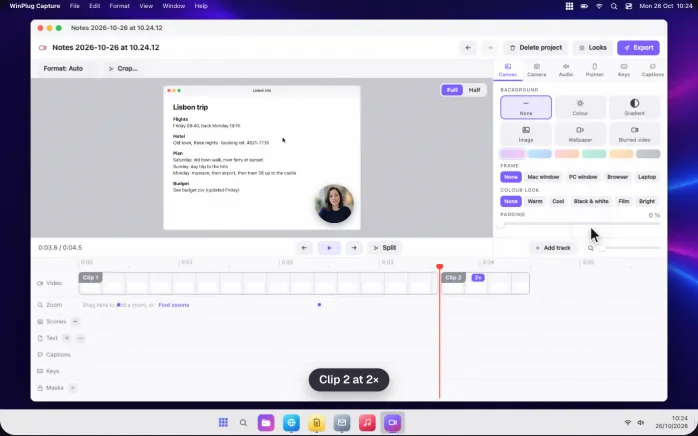
It opens when you stop: cut, zoom on your clicks, add captions and text, then export.
Screen recording on a Mac: what changes
Coming from Windows, this is where recording your screen works differently on a Mac, and what WinPlug Capture adds.
| On a Mac | With WinPlug |
|---|---|
| There’s no Win + Alt + R. | Win + Alt + R records an area, Win + ⇧ + R the whole screen. |
| You can’t record just one window. | Pick a window, and only that window is in the video. |
| ⇧⌘5 records the screen only: no camera bubble. | Your camera in a bubble, its background blurred or removed. |
| There’s nothing to read from while you talk. | A teleprompter under the camera that never shows in the video. |
| A recording comes out raw, with a trim at most. | A full editor: cuts, zooms on your clicks, text, captions, music. |
| Nothing hides a password or an address. | Blur, pixelate or black out a part, and it stays on it. |
| Every recording is a MOV file. | An MP4 or a MOV up to 4K, a GIF or the sound alone, in 9:16 too. |
Record the whole screen, a window or an area on a Mac
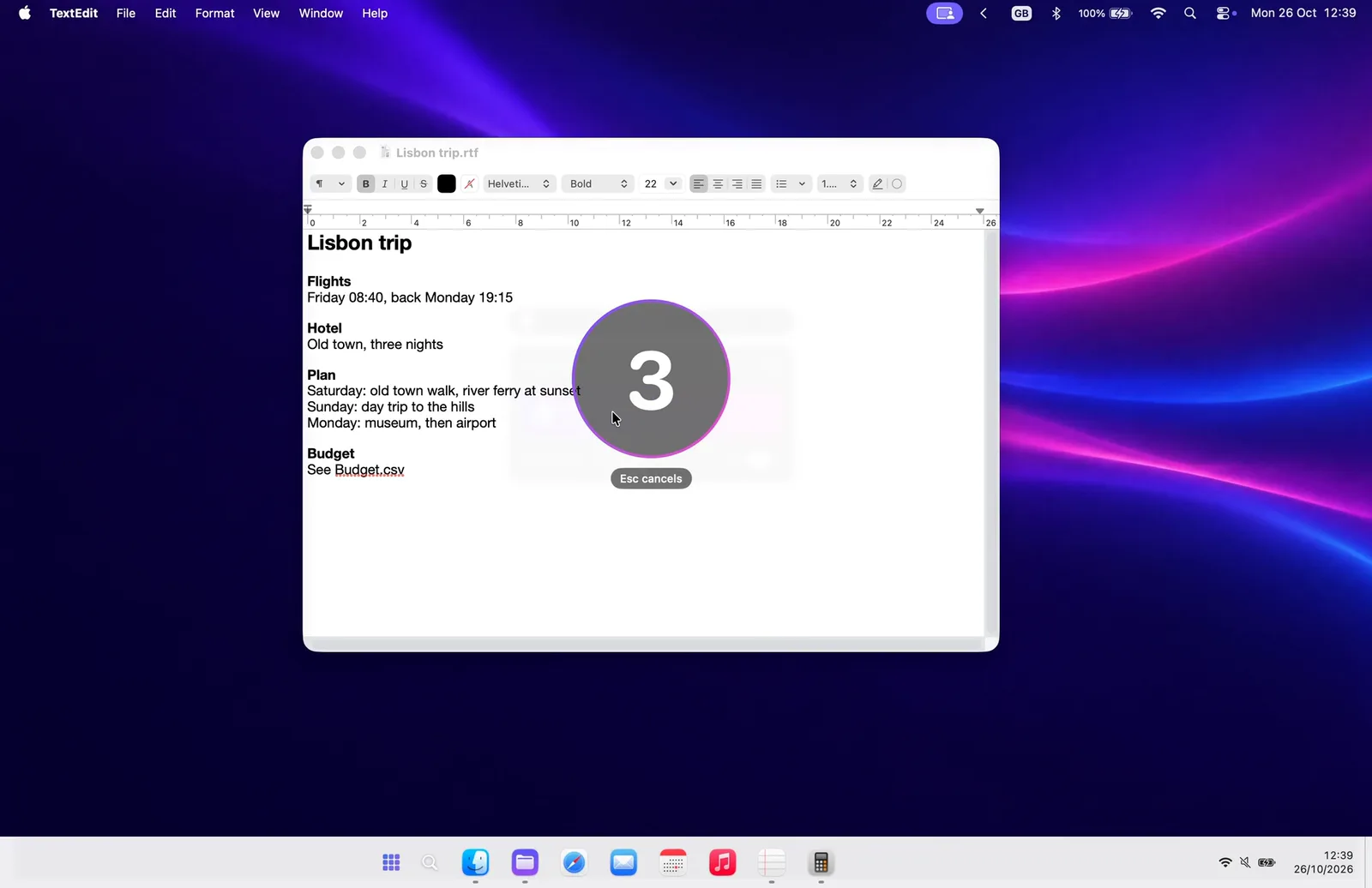
Press Win + Alt + R for an area or Win + ⇧ + R for the whole screen.
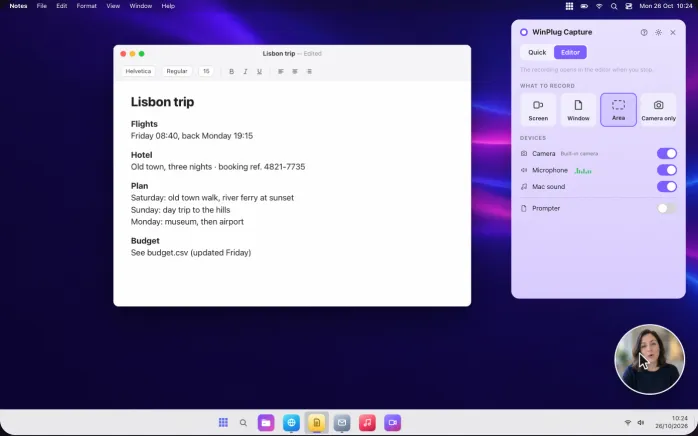
Win + Alt + ⇧ + R or the Start menu opens the recorder: Screen, Window, Area or Camera only.
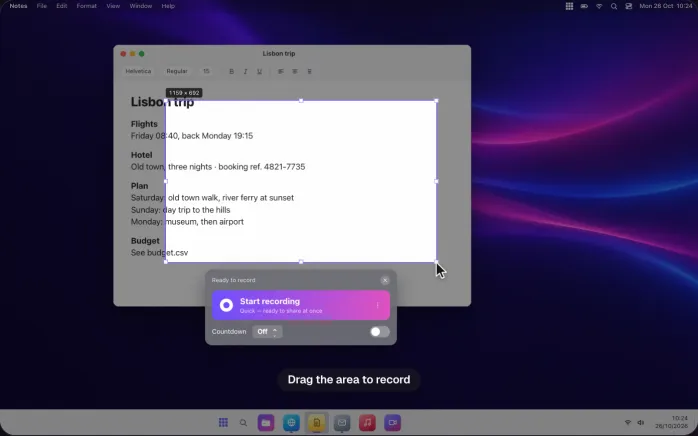
A window is followed if it moves, and an area shows its size as you drag it.
Quick screen recordings: the file is ready when you stop
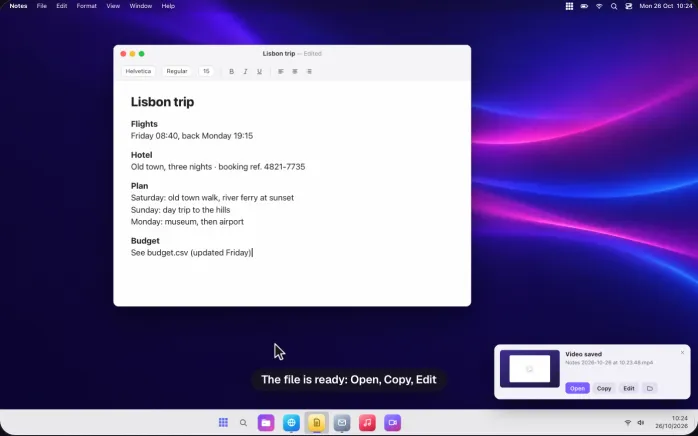
With Quick, the video is ready the moment you stop: click Stop or press your shortcut again.
The MP4 or GIF is saved, your camera bubble drawn in.
A preview offers Open, Copy and Edit, and the original always stays as it was.
How to screen record on a Mac with audio and your camera
Turn on the microphone, the Mac’s sound and the camera, one switch each.
Your camera shows in a bubble you drag into any corner, round or square, small or large.
Blur or remove your background, worked out on your Mac.
A teleprompter for Mac that never shows in the video
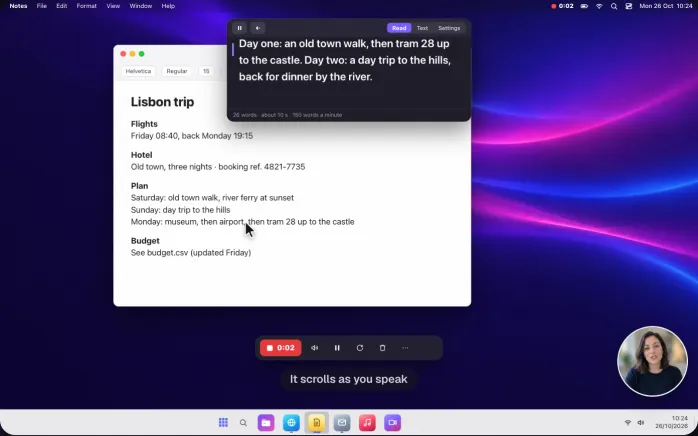
Type or paste your script: the prompter opens right under the Mac’s camera, so your eyes stay near the lens.
It scrolls at your speed, from 60 to 250 words a minute.
It never shows in your recordings, nor in screen sharing.
How to edit a screen recording on a Mac: cut with S, speed up
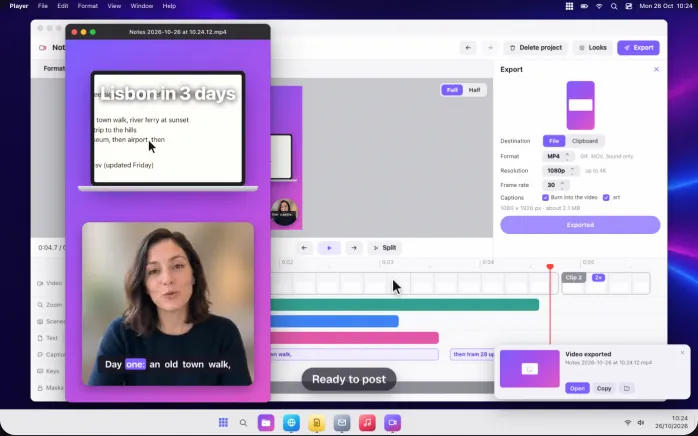
In Editor mode, the editor opens by itself when you stop.
Space plays, S splits the clip, Delete drops a mistake.
Right-click a clip to speed it up, from 0.25× to 8×.
Everything is saved as you go, and the recording itself never changes.
Zoom in on your clicks, with a pointer you can follow
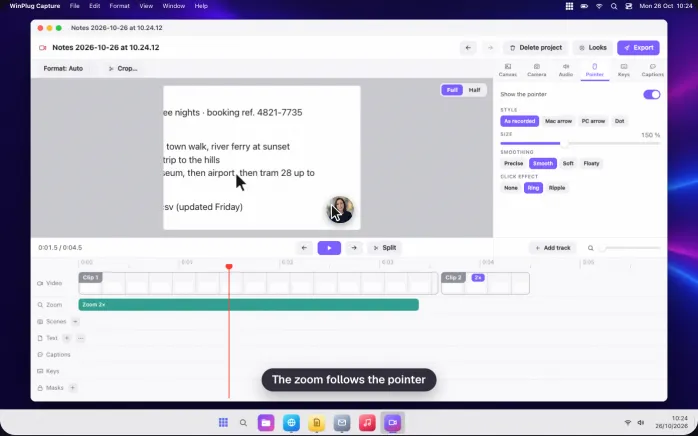
Find zooms adds a zoom on each click, from 1.1× to 4×, that follows the pointer like a calm camera.
The pointer is redrawn sharp: up to 3 times bigger, smoother, with a ring or a ripple on every click.
Switch between your screen and your camera with scenes
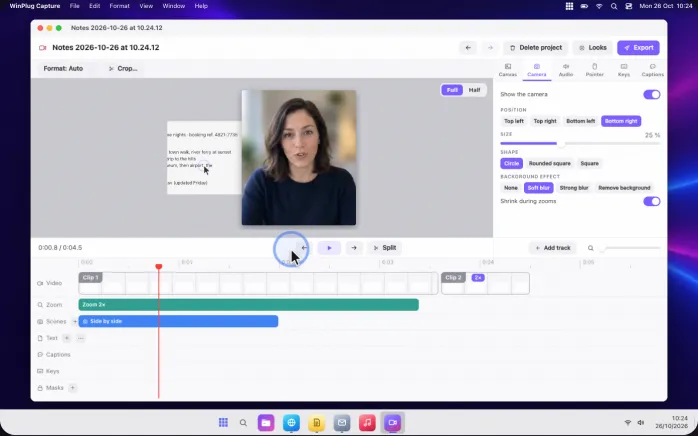
On the Scenes track, show your camera alone for the intro, side by side with the screen, or the screen alone.
The Camera tab sets the bubble’s corner, size and shape, and shrinks it during zooms.
Add text and titles to a screen recording
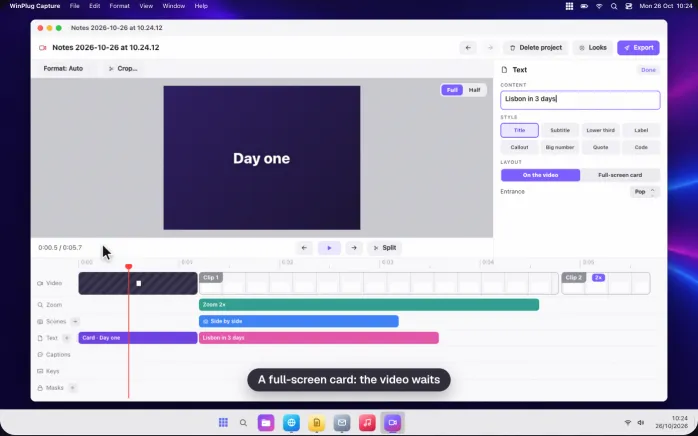
Add a text at the playhead in 8 styles, from Title and Lower third to Callout and Code, in any font and colour.
Each one comes in with its own animation.
A full-screen card pauses the video for a title or a new step.
Add captions to a screen recording, made on your Mac
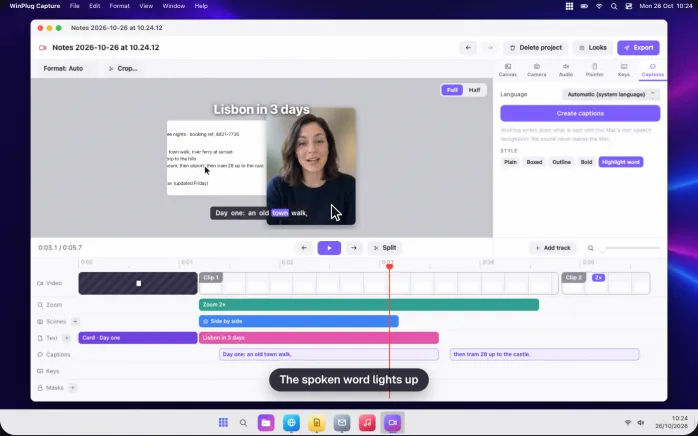
Create captions writes down what you say with your Mac’s own speech recognition: nothing leaves the Mac.
Fix any word by typing, and pick one of 5 styles, one with the spoken word lit up.
Burn them in, save a .srt file, or both.
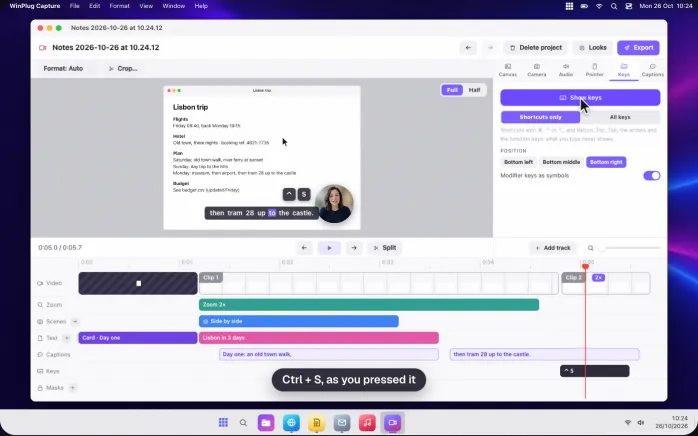
Show the keys you press in your screen recordings
Show keys puts the shortcuts you pressed on the video, as small key caps: Ctrl + S typed on a Windows keyboard shows as Ctrl + S.
With Shortcuts only, what you type never shows, nor any password.
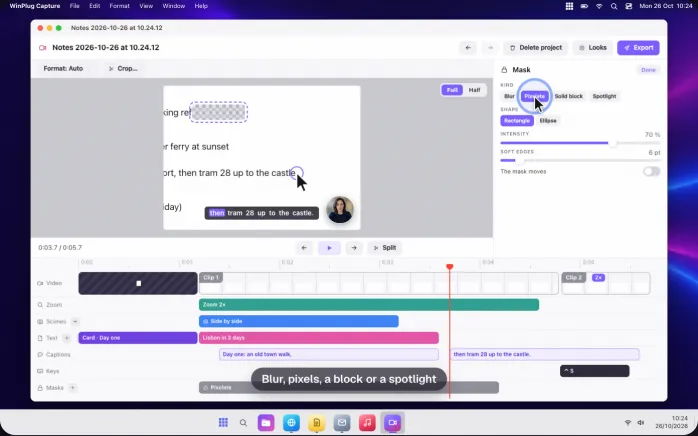
How to blur part of a screen recording
Add a mask on what must stay private: Blur, Pixelate, a Solid block, or a Spotlight that dims all around it.
It sits on the recording itself, so it stays in place in a zoom.
The mask moves to follow a page that scrolls.
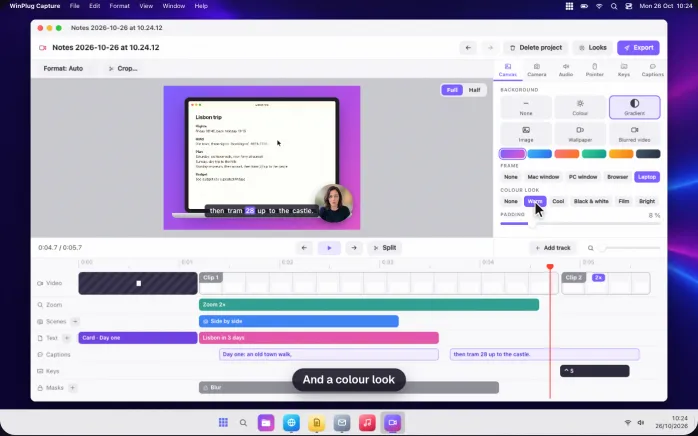
Add a background and a frame to a screen recording
In Canvas, one click adds a background with padding, rounded corners and a soft shadow.
Put the video in a Mac window, a browser or a laptop.
Then give it a colour look: Warm, Cool, Film, Night and more.
Export a screen recording as MP4, GIF or MOV, in 9:16 too
Choose the shape: 16:9, 9:16 for phones, 1:1 and more, and crop to what matters.
Export an MP4 or a MOV up to 4K at 60 frames per second, a GIF that loops, or the sound alone.
Save it to a file or straight to the clipboard.
And also…
Voice cleanup
Less background noise and a more even voice, worked out on your Mac. Light or Strong, for every new recording if you like.
Music that steps back
Drop an MP3 on the Audio track: it fades in and out, and goes 12 dB lower while you speak.
Saved looks
Save your background, frame, colour look, camera, pointer and captions style, and star one for every new recording.
Your logo, all along
The Image track lays a PNG, JPEG, HEIC or GIF in a corner for the whole video, or a picture for a few seconds.
Pause, start over, delete
The control bar never shows in the video. Win + Alt + P pauses and resumes; Start over and Delete ask first.
Straight to the clipboard
Export and copy: paste the video into a chat or a document, no file to find.
All your recordings
The library finds, renames and reopens them, imports an MP4 or MOV to edit, and recovers a recording after a crash.
Windows screen recording shortcuts on your Mac
- WinAltR
- Record an area (press again to stop)
- Win⇧R
- Record the whole screen
- WinAlt⇧R
- Open the recorder: Screen, Window, Area or Camera only
- WinAltP
- Pause or resume
- Esc
- Cancel the countdown
- Space
- Play or pause, in the editor and the prompter
- S
- Split the clip at the playhead
- Delete
- Delete the selected clip, text, mask or caption
- ←→
- One frame back or forward (⇧: one second)
On a Mac keyboard, Win is the Command key and Alt is Option. Record a window, Record the camera only, Start over and Delete can get their own shortcuts in WinPlug Capture’s settings.
See it on a real Mac
No mock-up: WinPlug Capture filmed on a real MacBook. Click a feature in the list to jump straight to it.
- Quick: screen, window or area: Quick mode: record the whole screen, one window or an area you drag.
- Draw an area and record: Drag an area: recording starts after a short countdown.
- The file is ready when you stop: Stop, and the video file is ready, with a preview in the corner.
- Editor: record a window: Pick Editor and Window: the window is framed, then recorded.
- The editor opens by itself: Stop, and the editor opens by itself. Space plays and pauses.
- Cut, speed up: S splits the clip. Right-click it to change its speed, up to 8×.
- One-click gradient, 9:16: Pick 9:16 for phones, then one click adds a gradient background.
- Export and play: Export an MP4, a GIF or a MOV, then play it right away.
Features in the video
Screen recording on Mac questions
How do I screen record on a Mac?
macOS has ⇧⌘5: it records the whole screen or a part of it and saves a MOV. With WinPlug, press Win + Alt + R for an area or Win + ⇧ + R for the whole screen, or Win + Alt + ⇧ + R to open the recorder and record a single window or your camera. With Editor, the recording opens in the editor when you stop.
How do I screen record on a Mac with audio?
In WinPlug Capture’s recorder, turn on Microphone for your voice and Mac sound for what your Mac plays, each with its own switch. If the microphone is off, WinPlug asks whether to record without your voice. In the editor, each sound has its own volume, and voice cleanup lowers the background noise.
How do I stop a screen recording on a Mac?
In WinPlug, click Stop on the control bar, press the shortcut you started with again, or click the red dot and the time in the menu bar. A recording started with ⇧⌘5 stops from the stop button in the menu bar.
Can I record my screen and my camera at the same time?
Yes. Turn on the camera in the recorder: it shows in a bubble you can move, resize and shape, with its background blurred or removed. A Quick recording has the bubble in the picture; an Editor recording keeps the camera on its own track, so you can move it, show it alone or side by side with the screen later.
Does the teleprompter show in my video or on a call?
No. The prompter is left out of WinPlug’s recordings, and macOS leaves it out of other apps’ screen captures and screen sharing too, so you can read your script on a video call as well.
Are the captions made on my Mac?
Yes. WinPlug Capture uses your Mac’s own speech recognition: the sound never leaves the Mac and there’s nothing to download. You can correct every word, then burn the captions into the video or save a .srt file.
Can I record just one window?
Yes. Choose Window and pick it from the list, or let WinPlug take the window you were working in: only that window is in the video, even when it moves.
Can I make a GIF of my screen on a Mac?
Yes. Set Quick recordings to GIF to get one the moment you stop, or export a GIF from the editor: it loops forever, without sound, up to 2 minutes long and 480 to 1080 pixels wide.
Where are my screen recordings saved?
In Movies › WinPlug Capture, named after the app and the time, like “Notes 2026-10-26 at 10.24.12”. You can choose another folder. The library lists them all, with search, rename and export again.
What happens if my Mac crashes while recording?
Recordings are written in small pieces as you go, so you lose about a second at most, and next time WinPlug Capture starts it offers to recover the rest. It also stops and saves before your disk runs out of space.
Does anything leave my Mac?
No. There’s no account, no upload and no share link: your videos stay in your folder. Captions, background blur and voice cleanup are all worked out on your Mac.
Do I need to buy or install WinPlug Capture separately?
No. WinPlug Capture comes with WinPlug: one download, one install, one license. It opens in its own window, with its icon in the Dock, its menus and a library of your recordings. Simple enough for a quick clip, complete enough for tutorials, product demos, training and social media videos.
One license, every habit
WinPlug Capture is one of the 9 modules of WinPlug, and the same app gives you the 8 others. One license for all of them: $24 one-time at launch, for 2 Macs, with a free 14-day trial and no account.
- WinPlug TaskbarA real taskbar: every window one click away, previews on hover, a Start menu.
- WinPlug SnapWin + Shift + S to snip, an editor with arrows, blur and text, pinned captures.
- WinPlug KeyboardCtrl + C, Ctrl + V, Alt + F4, Home and End, on any keyboard.
- WinPlug SwitchAlt-Tab window by window, with live thumbnails, search and Peek.
- WinPlug ExplorerA file explorer that cuts and pastes, with an address bar and dual pane.
- WinPlug ClipboardEverything you copy, kept in a history you can paste from.
- WinPlug LayoutWindows snapped to halves, quarters and thirds, with Win + arrows.
- WinPlug MouseThe wheel scrolls like Windows, the trackpad stays natural, Ctrl + wheel zooms.