File explorer for Mac
The file explorer you know from Windows, on your Mac
macOS has its own file manager, but it doesn’t work like Windows: Cut doesn’t work on files, Return renames instead of opening, and a ZIP unpacks the moment you open it. WinPlug Explorer is a Windows-style file explorer for your Mac, with real cut and paste, an address bar you can type in, Details view with folder sizes, dual pane and archives that open like folders.
Free 14-day trial$24 one-timemacOS 14.4 or later

File explorer on Mac: what you miss coming from Windows
Coming from Windows, this is where your Mac handles files differently, and what WinPlug Explorer brings back.
| On a Mac | With WinPlug |
|---|---|
| Files can’t be cut: you copy them, then move them with a special paste. | Cut with ⌘ + X, paste with ⌘ + V, like on Windows. |
| Double-clicking a ZIP unpacks all of it next to the archive. | ZIP, RAR and 7z archives open like folders: take out one file, or Extract all. |
| Enter renames a file instead of opening it. | Enter opens, F2 renames, Backspace goes back to the previous folder. |
| There’s no address bar to type a path into. | Type or paste a path in the address bar, or click › to jump to a subfolder. |
| Folder sizes don’t show in the list. | Details view shows each folder’s size, worked out in the background. |
| Moving files means juggling two windows. | Dual pane puts two folders side by side, with a transfers bar for big copies. |
Open ZIP, RAR and 7z files on your Mac like folders
On a Mac, double-clicking a ZIP unpacks all of it next to the archive.
In WinPlug Explorer, it opens like a folder, no unzipping: press Space to preview a photo, drag a file straight out, or click Extract all.
RAR, 7z and TAR archives open the same way, read-only.

Show folder sizes on your Mac, right in Details view
On a Mac, folders show no size in the list until you change the view options.
In WinPlug Explorer’s Details view, folder sizes fill in on their own, folders unfold right in the list, and Backspace takes you back to the previous folder.

Rename files in place, and undo a delete with Command-Z
Click a selected file, pause, click again, or press F2: its name becomes editable right in the list, the extension left alone.
Sent a file to the Trash by mistake?
Command-Z brings it back, and also undoes a move, a copy or a rename.

Cut and paste files on your Mac, between 2 panes
On a Mac, Cut doesn’t work on files: you copy, then press Option-Command-V to move.
In WinPlug Explorer, Command-X cuts, Tab jumps to the other pane and Command-V pastes.
The transfers bar shows the speed and the time left, and big copies wait in a queue you can pause.

8 views and any icon size, remembered for each folder
Extra large, Large, Medium and Small icons, List, Details, Tiles and Content: the eight views you know, on Command-Shift-1 to 8.
Slide to make icons bigger, up to 512-pixel thumbnails, and each folder keeps its own view.

Copy a file path on your Mac, or paste one in the address bar
Click the › after a folder to list its subfolders, or paste a path in the address bar and press Enter to go straight there.
To copy a file’s path, right-click it and choose Copy as Path, or press Option-Command-C.

Dropbox, OneDrive and Google Drive in the folder tree, with their status
Dropbox, OneDrive, Google Drive, Box and iCloud Drive sit in the folder tree, with a Status column: on this Mac, online only or syncing.
A bar under each disk shows how full it is, and Disk Usage shows what’s taking up space in a folder, biggest first.

Right-click to create a new text file or document on your Mac
Your Mac’s right-click menu has no New File.
In WinPlug Explorer, right-click › New gives you a blank text, Markdown, RTF, HTML, JSON or CSV file, or a document, workbook or presentation, named right in place.
Add a color tag, then press Option-Enter or Command-I for its Properties: size, size on disk, dates and the app that opens it.

And also…
Tabs
Open folders in tabs. ⌘ + T for a new one, drag a tab to reorder.
Search inside files
Search names with * and ? wildcards, or what’s inside files, in every subfolder.
Batch rename
Rename many files at once, with a preview before you apply.
Compress
ZIP, 7z or TAR.GZ from the right-click menu.
Sync and compare
Mirror one folder to another, or compare two side by side.
Snapshots
Save a dated copy of a folder, by hand or every hour, day or week.
File Basket
Collect files from several folders, then copy or move them in one go.
A transfer queue
Copies and moves wait their turn, with speed, pause and cancel. Free space is checked first.
Windows File Explorer shortcuts on your Mac
- Enter
- Open the selected file or folder
- F2
- Rename in place (click, pause, click works too)
- ⌫
- Back to the previous folder
- ⌘XCV
- Cut, copy, paste files
- ⌘Z
- Undo the last file operation (⇧ ⌘ Z to redo)
- ⌘⌫
- Move to the Trash (the Delete key works too)
- Space
- Preview with Quick Look
- ⌥Enter
- Properties (⌘ I works too)
- ⇧⌘N
- New folder (⌥ ⌘ N for a new text document)
- ⇧⌘.
- Show or hide hidden files
- ⌘T
- New tab
- ⌥⌘D
- Dual pane on or off; Tab moves to the other pane
- ⌘L
- Type a path in the address bar (⌥ ⌘ C copies a path)
- ⌘⇧1…8
- The 8 views
- ⌘Click
- Select several files (⇧ + Click for a range)
On a Windows keyboard plugged into your Mac, Command is the Windows key and Option is Alt. With WinPlug Keyboard, the Ctrl shortcuts of Windows work too.
See it on a real Mac
No mock-up: WinPlug Explorer filmed on a real MacBook. Click a feature in the list to jump straight to it.
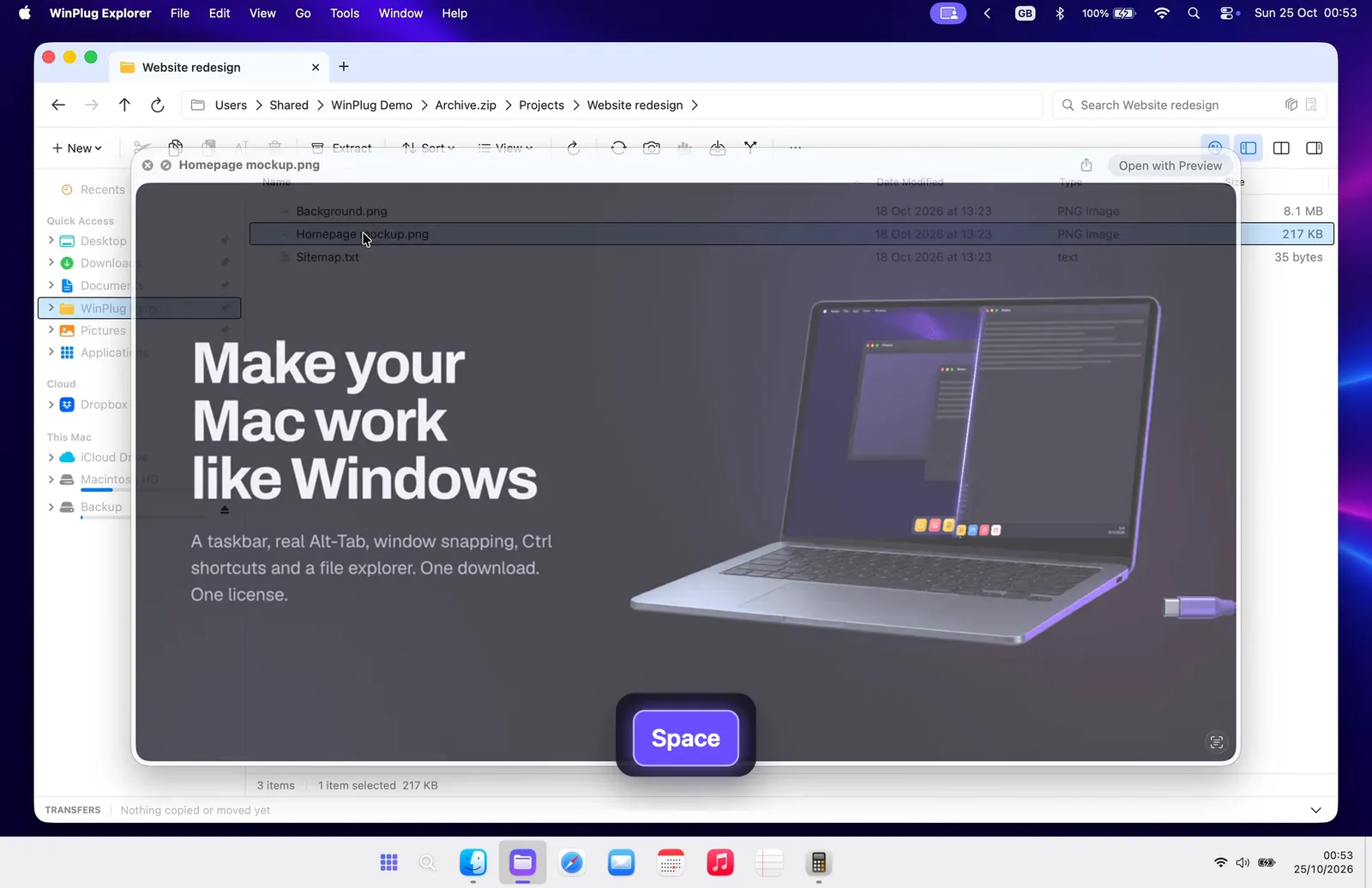
- ZIPs open like folders: Double-click a ZIP and you’re inside. Space previews a file.
- All 8 views: From Extra large icons to Content: 8 views, then any thumbnail size.
- Rename, delete, undo: Rename in place. Deleted it by mistake? ⌘ + Z brings it back.
- 2 panes, cut and paste: ⌘ + X in one pane, ⌘ + V in the other: files move, like on Windows.
- New, tags and Properties: Right-click › New for a blank document, named in place, then tag it.
Features in the video
File explorer for Mac questions
Where is the file explorer on a Mac?
macOS has its own file manager: the first icon in the Dock. It works differently from Windows: Return renames instead of opening, Cut doesn’t work on files and folders show no size. WinPlug Explorer is a Windows-style file explorer that sits next to it: Enter opens, F2 renames, Backspace goes back.
How do I cut and paste files on a Mac?
With macOS alone, Cut is grayed out for files: copy with Command-C, then press Option-Command-V to move the file instead of copying it. In WinPlug Explorer, Command-X cuts (the file fades until you paste) and Command-V pastes, like Ctrl+X and Ctrl+V on Windows.
How do I open ZIP, RAR or 7z files on a Mac?
Double-click a ZIP and macOS unpacks all of it next to the archive. In WinPlug Explorer, ZIP, RAR, 7z and TAR files open like folders, read-only: press Space to preview a file, drag one out, or choose Extract all.
How do I copy a file path on a Mac?
With macOS alone, right-click the file, hold Option and choose Copy as Pathname (Option-Command-C). In WinPlug Explorer, right-click › Copy as Path, or press Option-Command-C; paste a path in the address bar and press Enter to go straight to it.
How do I create a new text file on a Mac?
macOS has no New File in its right-click menu: you open a text editor, make the document plain text and save it. In WinPlug Explorer, right-click an empty spot › New › Text Document (.txt) and type its name in place, or press Option-Command-N. Markdown, RTF, HTML, JSON and CSV files, documents, workbooks and presentations are in the same menu.
How do I show hidden files on a Mac?
Press Command-Shift-Period (.) in a folder window, and press it again to hide them. It works the same in WinPlug Explorer, where the switch is also in the View menu, and Properties shows whether a file is hidden.
How do I see what’s taking up space on my Mac?
macOS sorts your storage by category in System Settings › General › Storage. WinPlug Explorer shows a bar under each disk, and Disk Usage lists what takes the space in a folder, biggest first, with bars: double-click a folder to look inside.
Can WinPlug Explorer replace the Mac’s built-in file manager?
It works next to it. The Mac’s own file manager keeps the desktop and the Open and Save windows of your apps; you work in WinPlug Explorer, opened from the taskbar or the Start menu.
Can I change WinPlug Explorer’s icon?
Yes. In its Settings › Appearance › App icon, pick WinPlug’s gradient, Windows yellow (a white folder on the yellow of Windows), a colour of your own, or a two-colour gradient. The icon changes in the Dock, in the Applications folder and on WinPlug’s taskbar.
One license, every habit
WinPlug Explorer comes with 8 more modules: one license, $24 one-time at launch, for 2 Macs, with a free 14-day trial and no account.
- WinPlug TaskbarA real taskbar: every window one click away, previews on hover, a Start menu.
- WinPlug SnapCapture an area, a window or the whole screen, and mark it up.
- WinPlug KeyboardYour Windows shortcuts as they were: Ctrl+C, Ctrl+V, Alt+F4, Home and End.
- WinPlug SwitchAlt-Tab window by window, with live thumbnails, search and Peek.
- WinPlug CaptureRecord the screen, a window or an area, then cut, style and export it in an editor.
- WinPlug ClipboardEverything you copy, kept in a history you can paste from.
- WinPlug LayoutSnap windows to halves and quarters by dragging them to an edge, or from the keyboard.
- WinPlug MouseThe wheel scrolls like Windows, the trackpad stays natural, Ctrl + wheel zooms.