Alt-Tab on Mac
Switch window by window, the way you did on Windows
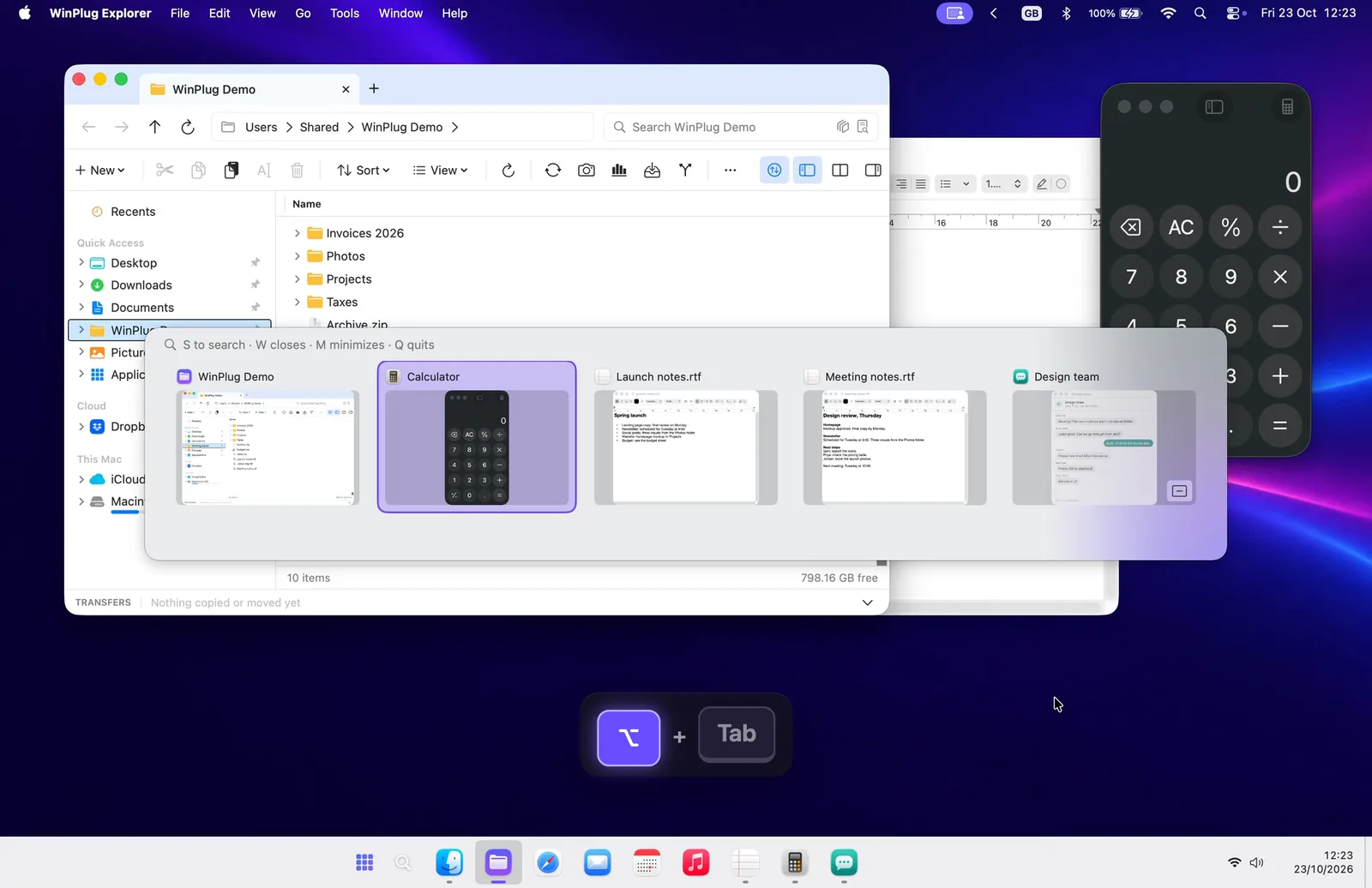
On a Mac, Command-Tab switches between apps, not windows: an app with three windows is one icon. WinPlug Switch brings Alt-Tab to your Mac: hold Option or Command, tap Tab, and every open window is there with a live thumbnail, ready to pick, find, close or minimize.
Free 14-day trial$24 one-timemacOS 14 or later

Switching from Windows to Mac: where Command-Tab falls short
Coming from Windows, this is where Command-Tab lets you down, and how WinPlug Switch brings Alt-Tab back.
| On a Mac | With WinPlug |
|---|---|
| Command-Tab shows apps, not your windows. | Every open window gets its own card, with a live thumbnail. |
| Going back takes you to the app, not the window you left. | A quick tap takes you back to the exact window you just left. |
| Minimized windows stay in the Dock when you switch to their app. | Minimized windows and hidden apps are in the grid. Pick one and it’s back. |
| No way to find a window by name. | Press S and type a few letters: only the matching windows stay. |
| The switcher can’t close or minimize a single window. | W closes the window, M minimizes it, Q quits the app. |
| Windows on your other desktops stay out of the list. | As an option, they join the grid, marked Other desktop. |
How to Alt-Tab on your Mac: every window in one grid
Hold Option and tap Tab: WinPlug shows every open window in a grid, each with its app icon, its title and a live thumbnail.
Keep tapping Tab to move along, then let go and the window you picked comes to the front, like Alt-Tab on Windows.
On a Windows keyboard plugged into your Mac, that’s Alt + Tab.

Toggle between your last 2 windows with one quick tap
Tap Option-Tab and let go at once: no grid, you’re straight back in the window you just left.
Tap it again a moment later and you’re back where you started.
Windows are listed in the order you used them, so the previous one is always one tap away, even when it belongs to the same app.

Peek at a window before you switch
Glide the pointer over the cards: each window shows full size, right where it sits on your screen, with the rest dimmed.
Click a card to switch to it, or hit its red cross to close that window.

Switch windows with the keyboard, arrow keys included
While the grid is open, the arrow keys move card by card, Up and Down jump a whole row, and Shift-Tab goes back.
Return or Space opens the window, Escape closes the grid without switching.

Find a window by typing its name
Press S while the grid is open and type a few letters of a window title or an app name: only the matching windows stay.
Case and accents don’t matter.
Press Return to open the first one.

Close a window or quit an app from the keyboard
In the grid, W closes the selected window, M minimizes it and Q quits its app, all without letting go of Option.
W, M, Q and S follow your keyboard layout, AZERTY included.
Q never quits WinPlug itself.


Command-Tab for windows, not just apps
On a Mac, Command-Tab switches apps.
With WinPlug, it opens the same grid of windows, so the shortcut your hand already knows works window by window.
You can give Command-Tab back to macOS in WinPlug’s settings.

Switch desktops on your Mac by picking a window
As an option, WinPlug lists the windows of every desktop (macOS calls them Spaces), marked Other desktop: pick one and your Mac slides straight to that desktop.
Without the option, the grid keeps to the desktop you’re on.

Alt-Tab without the Screen Recording permission
Live thumbnails and Peek’s full-size picture need macOS’s Screen Recording permission.
Without it, WinPlug Switch still works: each card shows the app’s icon and the window title, and nothing on your screen is captured.
No purple recording dot, no recurring macOS reminder.

Move a window to another desktop from the keyboard
Press Command-Control-Shift-Right Arrow and the window you’re in moves to the next desktop, and you go with it.
Left Arrow brings it back.
On a Windows keyboard, that’s Win + Ctrl + Shift and an arrow.

Switch between windows of the same app on your Mac
On a Mac, Command-` (the key above Tab on a US keyboard) cycles the windows of the app in front.
With WinPlug, tap Command-Tab twice quickly to reach the next window of the app you were in; a third tap keeps going.

And also…
Most recent first
Windows are listed in the order you used them, like Alt-Tab on Windows, so the one you want is usually first.
Shift goes back
Add Shift to Tab to step backwards through the grid, without letting go.
On the screen you’re using
The grid opens on the display where your pointer is, even over full-screen apps.
This screen only
As an option, show only the windows of the display your pointer is on.
One card per app
As an option, Option-Tab lists apps instead of windows. The right Option key always lists windows.
Accents don’t matter
Search titles and app names without caring about case or accents: “resume” finds “Résumé.docx”.
Made for the mouse too
Hover a card to select it, click to switch, or use its red cross. The grid stays open as long as you hold the key.
WinPlug’s windows too
Your captures and WinPlug’s own windows are in the grid, and Q never quits WinPlug itself.
Windows Alt-Tab shortcuts on your Mac
- ⌥Tab
- Open the grid, and move to the next window
- ⇧Tab
- Move back
- ←→↑↓
- Move card by card, or a whole row
- Return
- Open the selected window (Space works too)
- Esc
- Close the grid without switching
- S
- Search: type a few letters of a title or an app
- WMQ
- Close the window, minimize it, quit its app
- ⌘Tab
- The same grid with Command
- ⌘Tab×2
- Two quick taps: the next window of the same app
- ⌘⌃⇧→
- Send the window to the next desktop (← to come back)
- Hover
- Select a card and Peek at its window
- Click
- Switch to that window, or close it with the red cross
On a Windows keyboard plugged into a Mac, Option is the Alt key and Command is the Windows key. Command-Tab and the window grid can be switched off in WinPlug’s settings.
See it on a real Mac
No mock-up: WinPlug Switch filmed on a real MacBook. Click a feature in the list to jump straight to it.
- Window by window: Hold ⌥ and tap Tab through every window. Let go on the one you want.
- Peek: Glide over the cards: each window shows full size, right where it sits.
- Type to find: Press S and type a few letters. Enter opens the window you want.
- Other desktops: Windows on your other desktops join in. Pick one and you’re there.
- Send to a desktop: ⌘ + Ctrl + ⇧ + → sends the window to the next desktop, with you.
- Same app, next window: Tap ⌘ + Tab twice, quickly, to reach the next window of the same app.
Features in the video
Alt-Tab on Mac questions
What is the Alt-Tab equivalent on a Mac?
Command-Tab is the closest: it switches between apps, not windows, and Command-` cycles the windows of the app in front. WinPlug adds a real Alt-Tab to your Mac: Option-Tab or Command-Tab shows every open window with a thumbnail, and the one you pick comes to the front.
How do I switch between windows on a Mac?
With macOS alone, Command-Tab picks an app, Command-` moves between that app’s windows and Mission Control (Control-Up Arrow) spreads out every window. With WinPlug, hold Option or Command and tap Tab: every window is in one grid, and you can type to find one.
How do I switch between windows of the same app on a Mac?
Press Command-` (the key above Tab on a US keyboard) to cycle the windows of the app in front. With WinPlug, every window has its own card in the grid, and two quick taps on Command-Tab take you to the next window of the app you were in.
Where is the Alt key on a Mac?
On a Mac keyboard, Alt is the Option key (⌥), next to Command. On a Windows keyboard plugged into a Mac, the Alt key works as Option, so with WinPlug Alt + Tab opens the window grid as it does on Windows. W, M, Q and S in the grid follow your keyboard layout, AZERTY included.
Can Command-Tab show windows instead of apps?
Not in macOS. With WinPlug, Command-Tab opens the same grid of windows as Option-Tab, so the shortcut you already use goes window by window. You can switch it back to the macOS app switcher in WinPlug’s settings.
How do I switch between desktops on a Mac?
Swipe left or right with three or four fingers on the trackpad (depending on your settings), or press Control-Left Arrow or Control-Right Arrow; Mission Control (Control-Up Arrow) shows every desktop. With WinPlug, you can also turn on windows from all desktops: the grid lists them, and picking one takes you there.
Does WinPlug need the Screen Recording permission?
No. The permission only adds pictures: live thumbnails and Peek’s full-size view. Without it, every card shows the app’s icon and the window title, and nothing on your screen is captured.
Why doesn’t Command-Tab bring back minimized windows?
Command-Tab switches to the app, but its minimized windows stay in the Dock unless you press Option before you let go of Command. WinPlug lists minimized windows and hidden apps in its grid: pick one and it comes back.
One license, every habit
WinPlug Switch comes with 8 more modules: one license, $24 one-time at launch, for 2 Macs, with a free 14-day trial and no account.
- WinPlug TaskbarA real taskbar: every window one click away, previews on hover, a Start menu.
- WinPlug SnapCapture an area, a window or the whole screen, and mark it up.
- WinPlug KeyboardYour Windows shortcuts as they were: Ctrl+C, Ctrl+V, Alt+F4, Home and End.
- WinPlug ExplorerA file explorer with tabs, dual pane and the views you know.
- WinPlug CaptureRecord the screen, a window or an area, then cut, style and export it in an editor.
- WinPlug ClipboardEverything you copy, kept in a history you can paste from.
- WinPlug LayoutSnap windows to halves and quarters by dragging them to an edge, or from the keyboard.
- WinPlug MouseThe wheel scrolls like Windows, the trackpad stays natural, Ctrl + wheel zooms.