Mac customization
Keep what you love from Windows. Keep what you love from Mac.
You don’t have to choose between Windows and Mac. Keep the Windows habits you love, and the Mac features you like. Nothing is forced on you: in WinPlug’s Settings, every module, every feature and every detail is yours to set.
Free 14-day trial$24 one-timemacOS 14 or later
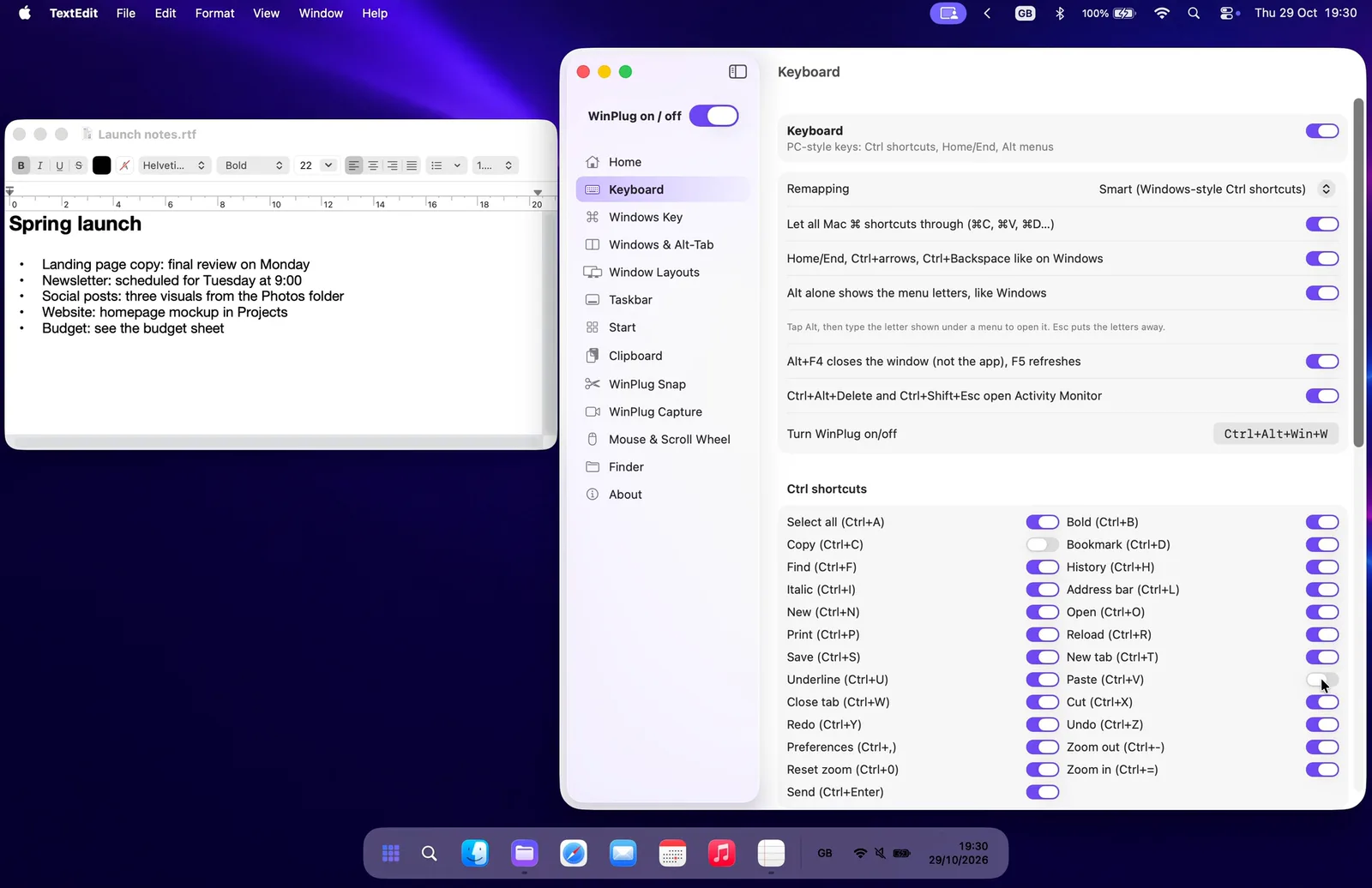
- Open Settings from the taskbar: Right-click the taskbar, then Taskbar settings…, like on Windows.
- Taskbar: Windows or Dock style: Full width like Windows, or floating like the Dock, in Mac glass.
- Turn off any Ctrl shortcut: Turn off Ctrl + C, Ctrl + V or any other one: ⌘C and ⌘V keep working.
- Turn off a whole module: The switch at the top right of each module turns all of it off.
- Alt-Tab is optional: Alt + Tab shows every window. Switch it off and the keys are free again.
- One switch turns it all off: WinPlug on / off: a regular Mac in one click, and everything back.
Features in the video
Windows or Mac? Pick the one you prefer, feature by feature.
Each row is a real setting of WinPlug, set the way it comes. Pick a side to see what changes. You can change your mind at any time.
Turn on only the modules you want
Each module has its own switch at the top of its settings. Switch one off and it steps aside: your Mac does that part its own way again.
- WinPlug TaskbarA real taskbar: every window one click away, previews on hover, a Start menu.
- WinPlug SnapWin + Shift + S to snip, an editor with arrows, blur and text, pinned captures.
- WinPlug KeyboardCtrl + C, Ctrl + V, Alt + F4, Home and End, on any keyboard.
- WinPlug SwitchAlt-Tab window by window, with live thumbnails, search and Peek.
- WinPlug ExplorerA file explorer that cuts and pastes, with an address bar and dual pane.
- WinPlug CaptureRecord the screen, a window or an area, then cut, style and export it in an editor.
- WinPlug ClipboardEverything you copy, kept in a history you can paste from.
- WinPlug LayoutWindows snapped to halves, quarters and thirds, with Win + arrows.
- WinPlug MouseThe wheel scrolls like Windows, the trackpad stays natural, Ctrl + wheel zooms.
Every feature, every detail
Here is what you can set, screen by screen, in WinPlug’s real Settings.
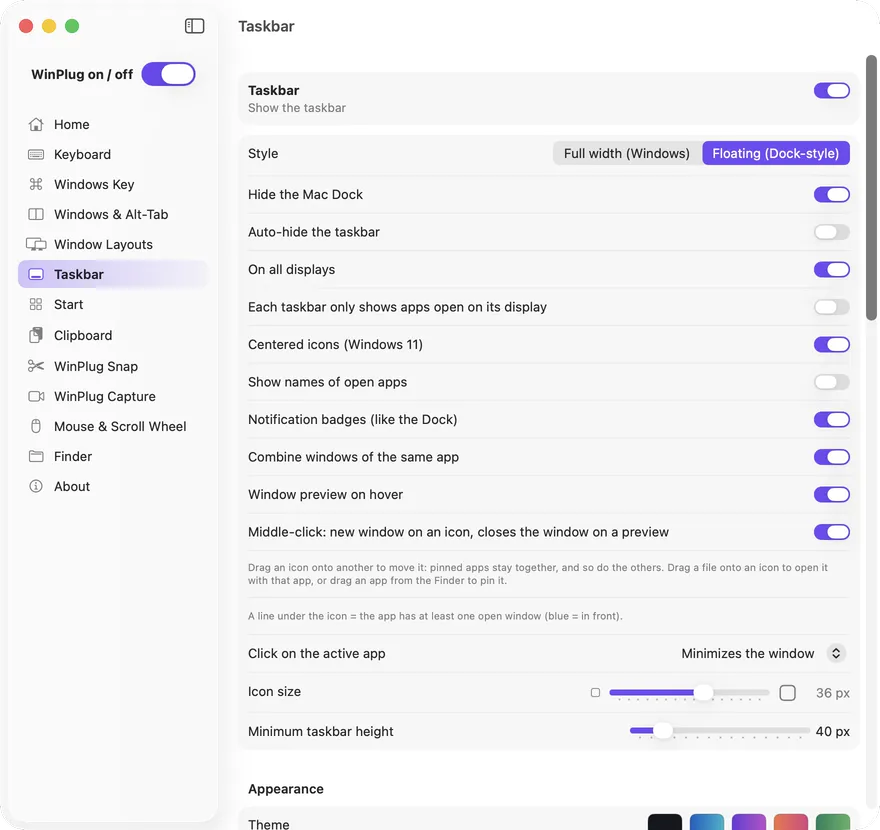
- Full width or floating, icons centered or not
- Keep or hide the Dock, auto-hide the taskbar, one bar per display
- Previews on hover, badges, names of open apps
- Icon size and taskbar height
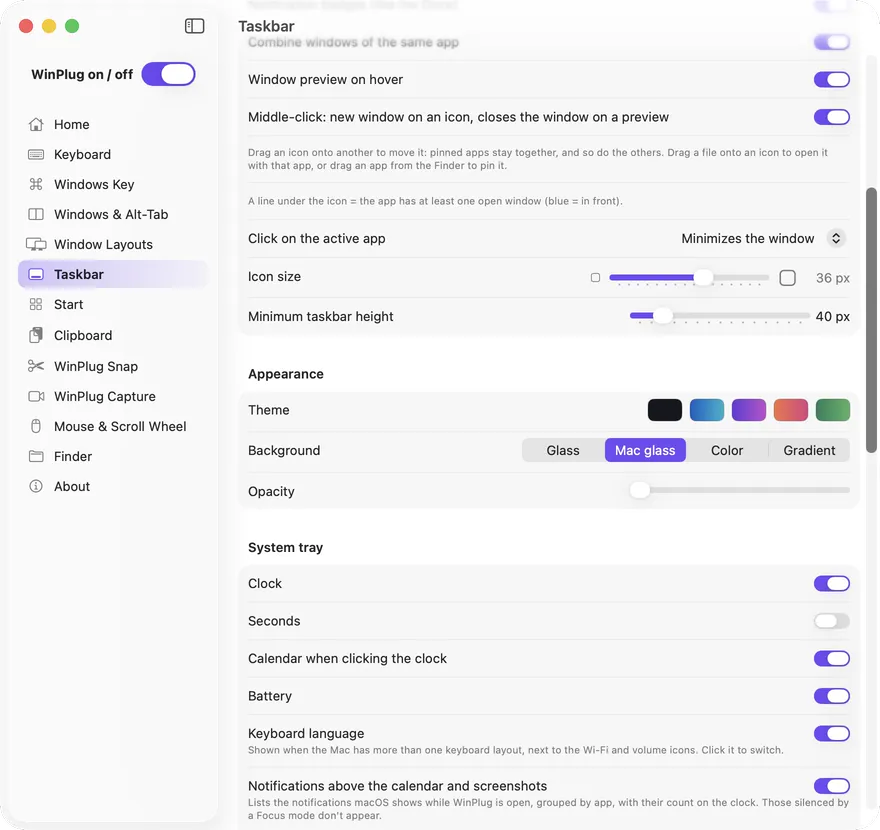
- 5 themes: Night, Ocean, Purple, Sunset and Forest
- Glass, Mac glass, a color or a gradient
- Clock, seconds, battery, keyboard language
- Notifications above the calendar
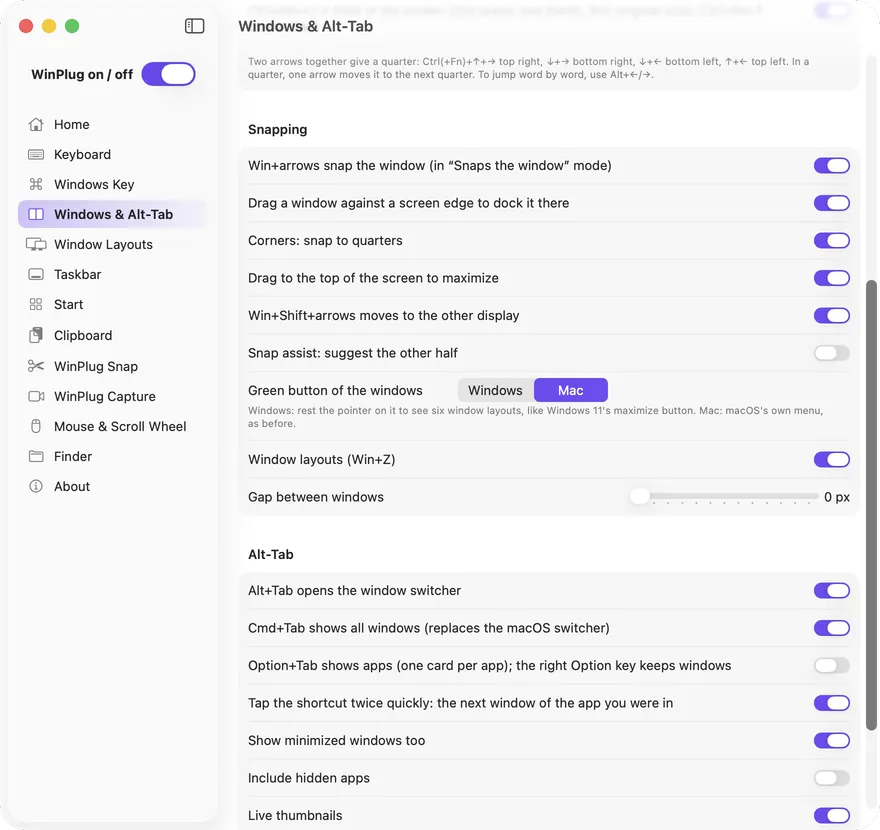
- Snap by dragging to an edge or a corner
- Green button: 6 layouts or the Mac’s menu
- Alt + Tab and Cmd + Tab, minimized and hidden windows
- Live thumbnails, this desktop or all of them
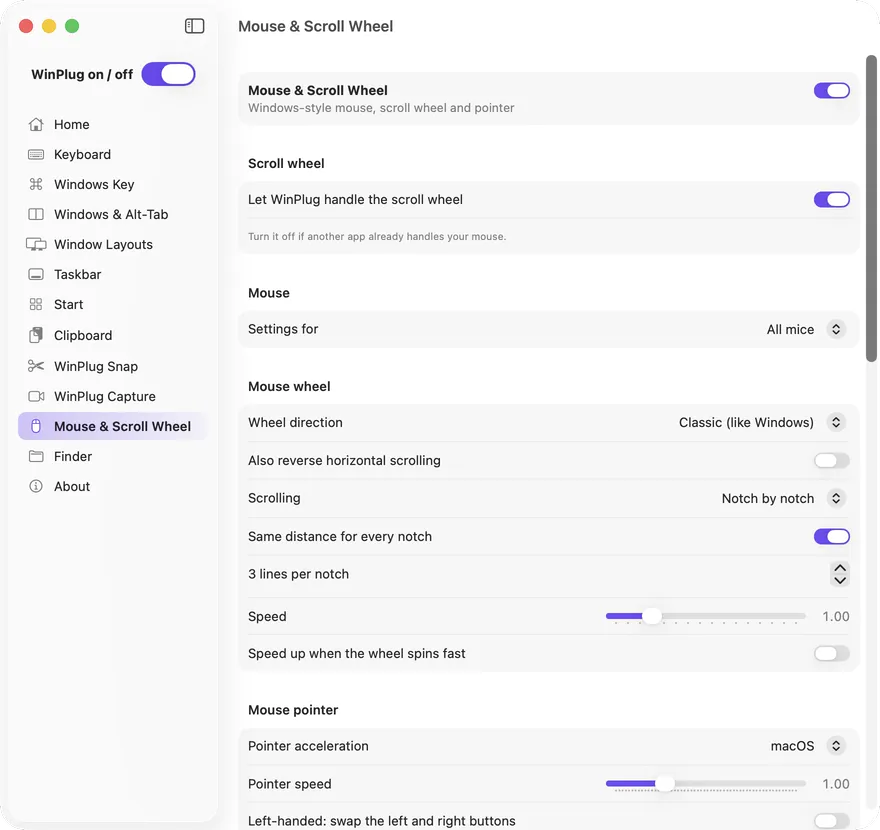
- Wheel direction: classic or natural
- Notch by notch, smooth, fluid or long glide
- Pointer acceleration: macOS, Windows or none
- Keys + wheel: zoom, scroll sideways, faster or slower
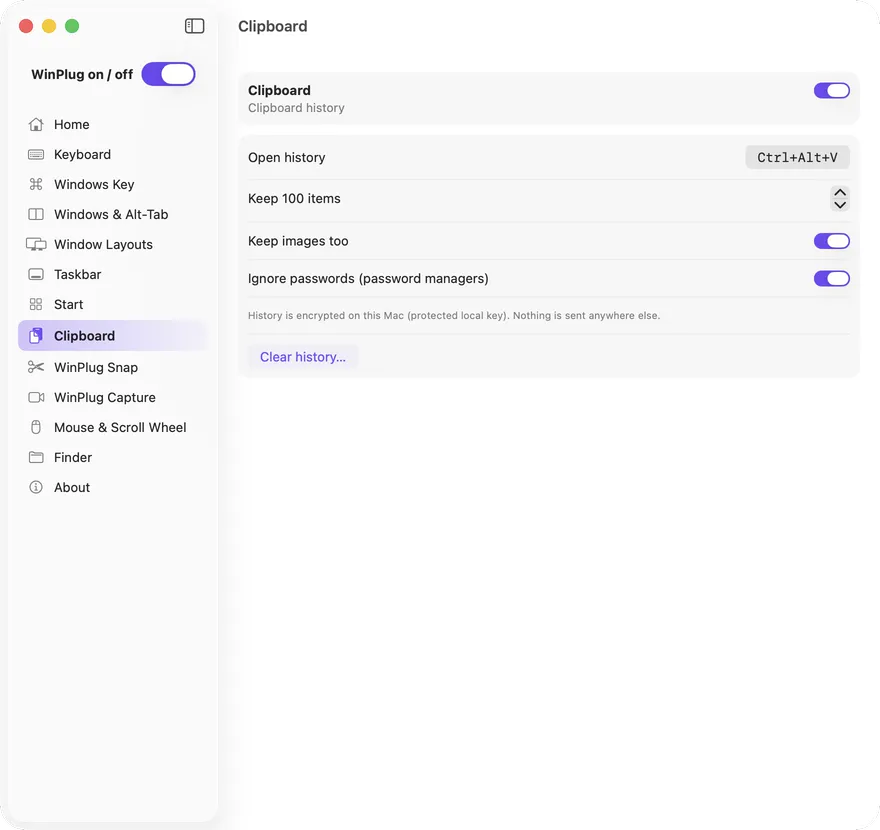
- Ctrl + Alt + V opens your history
- Keep 10 to 500 items, images too
- Passwords from password managers left out
- Encrypted on your Mac, sent nowhere
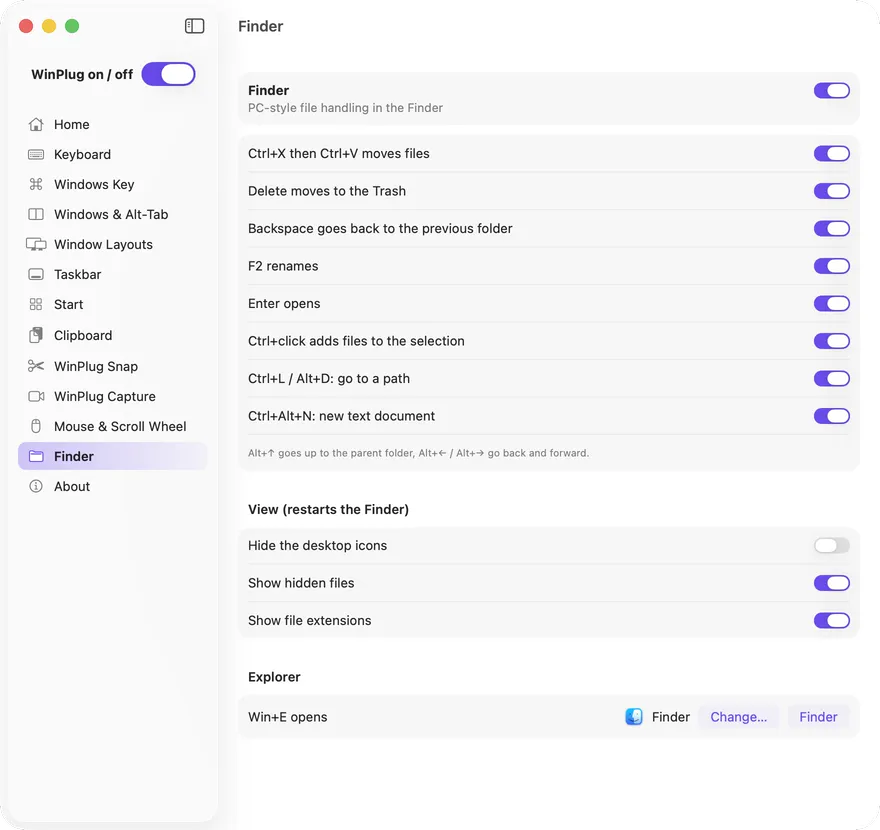
- Ctrl + X then Ctrl + V moves files
- Delete moves to the Trash, Backspace goes back
- F2 renames, Enter opens
- Show hidden files and file extensions
Back to a regular Mac in one click
WinPlug on / off, at the top of Settings, turns every module off at once: your Mac works exactly as before, ⌘ shortcuts and all. Ctrl + Alt + Win + W does the same from the keyboard. Press it again and everything comes back, set the way you left it.
Mac customization: your questions
Can I customize my Mac to work like Windows?
Yes. WinPlug brings back the taskbar, Alt-Tab, window snapping, the snipping tool, Ctrl shortcuts and the Windows mouse wheel. In its Settings, you keep each one, or leave it to the Mac.
Can I keep the Dock?
Yes. Turn off “Hide the Mac Dock” in Settings › Taskbar and you have both. Or pick the floating taskbar, which sits above the bottom edge like the Dock.
Do the Mac’s ⌘ shortcuts still work?
Yes. ⌘C, ⌘V and the other Mac shortcuts keep working next to Ctrl + C and Ctrl + V. You can turn the Ctrl shortcuts off, all at once or one by one.
Can I turn off Ctrl + C, Ctrl + V or Alt + Tab?
Yes. Each of the 25 Ctrl shortcuts has its own switch in Settings › Keyboard, and Alt + Tab has its own in Settings › Windows & Alt-Tab. Switched off, the keys do what they did before.
Can I turn off just one feature?
Yes. Each module has its own switch, and most features have their own setting too: the green button, the wheel direction, each Ctrl shortcut and each Win shortcut.
How do I get a regular Mac back?
Press Ctrl + Alt + Win + W, or turn off WinPlug on / off at the top of Settings: every module steps aside at once. Press it again and everything comes back.
Where are WinPlug’s Settings?
Right-click the taskbar and choose Taskbar settings…, or click WinPlug’s icon in the menu bar and choose Settings….
Does WinPlug change the look of macOS?
Your wallpaper, icons and folders stay as they are. WinPlug adds its own taskbar in the look you pick, glass, Mac glass, a theme or a color, and hides the Dock unless you keep it.
Your Mac, your way.