How to Force Quit on a Mac
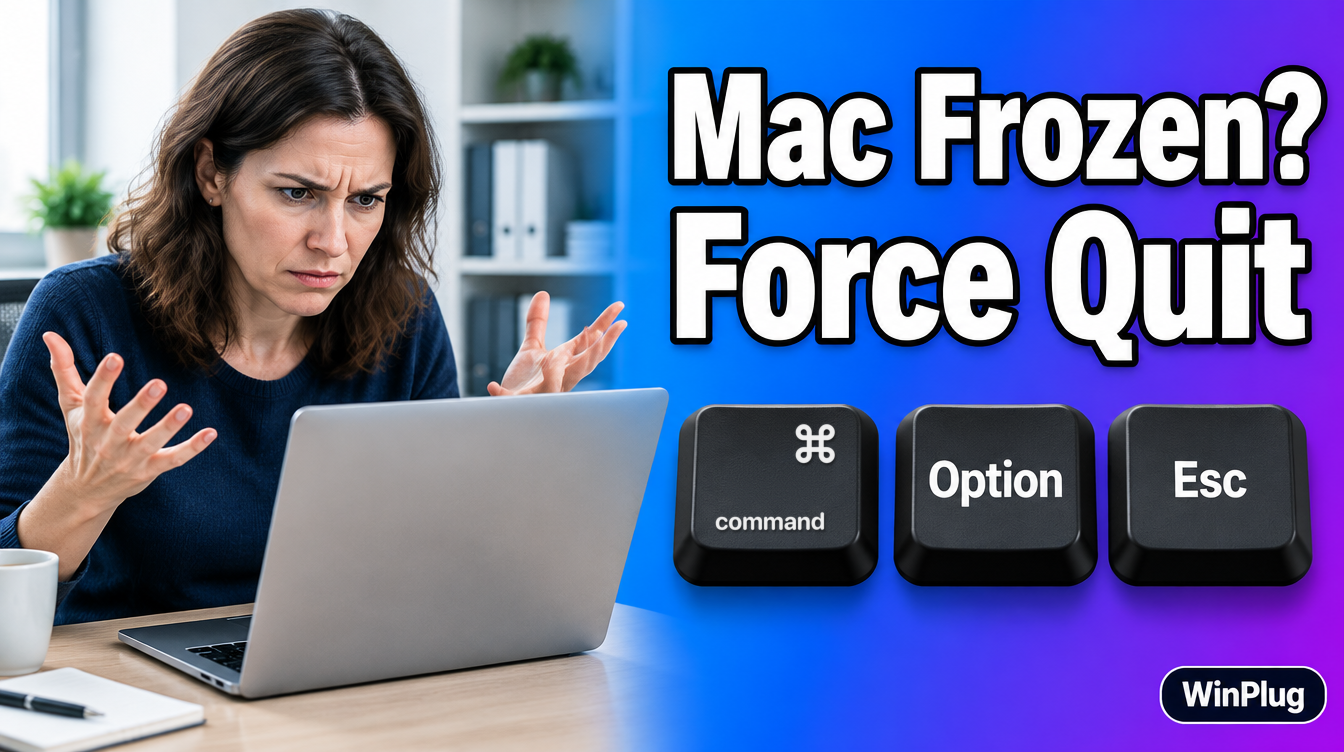
To force quit on a Mac, press Command+Option+Esc.
- The Force Quit Applications window opens: select the app that isn’t responding and click Force Quit.
- You can also choose Force Quit from the Apple menu, or Control-click the app’s icon in the Dock and choose Force Quit.
On this page
- 4 ways to force quit on a Mac
- How do I force quit with the keyboard?
- How do I force quit from the Apple menu?
- How do I force quit from the Dock?
- How do I force quit with Activity Monitor?
- What if my whole Mac is frozen?
- What if the Finder stops responding?
- Force quit vs. Ctrl+Alt+Delete
- Can I use Ctrl + Shift + Esc on a Mac?
- Frequently asked questions
4 ways to force quit on a Mac
| Way | How | When to use it |
|---|---|---|
| Keyboard shortcut | Command+Option+Esc | The fastest way |
| Apple menu | Apple menu > Force Quit | The keyboard doesn’t respond |
| Dock | Control-click the app’s icon > Force Quit | You can see the app in the Dock |
| Activity Monitor | Select the app > Stop > Force Quit | You want to see what’s slowing your Mac |
Force quitting closes the app at once. Unsaved changes in that app may be lost, but your other apps keep running. If the app still responds, quit it normally with Command+Q first.

How do I force quit with the keyboard?
- Press Command+Option+Esc together. On a Windows keyboard plugged into a Mac, press Windows key+Alt+Esc.
- The Force Quit Applications window opens. Select the app that isn’t responding. Its name may show “(Not Responding)”.
- Click Force Quit.

On a Mac with a Touch Bar, Esc is on the left side of the Touch Bar.
How do I force quit from the Apple menu?
If the keyboard doesn’t respond:
- Click the Apple menu in the top-left corner of the screen.
- Choose Force Quit.
- Select the app, then click Force Quit.

How do I force quit from the Dock?
- Control-click the app’s icon in the Dock (or right-click it with a mouse).
- Choose Force Quit.
If the menu shows Quit instead of Force Quit, hold the Option key: Quit changes to Force Quit.
How do I force quit with Activity Monitor?
Activity Monitor is the Mac’s task manager. It’s also the best place to find an app that slows everything down.
- Press Command+Space, type “Activity Monitor” and press Return.
- Select the app in the list. Click the % CPU column to sort by processor use.
- Click the Stop button (the X) at the top of the window.
- Choose Force Quit. Choose Quit instead if you want the app to close normally.


Leave processes you don’t recognize alone: many belong to macOS itself.
What if my whole Mac is frozen?
- Wait a few seconds, then try Command+Option+Esc again.
- Restart: Apple menu > Restart.
- Turn the Mac off: if nothing responds, press and hold the power button for up to 10 seconds, until the Mac turns off. Then press it again to turn it on. On a Mac with Touch ID, the Touch ID button is the power button.
Unsaved work is lost when you turn the Mac off this way, so keep it for last.

What if the Finder stops responding?
The Finder can’t be quit, but it can be relaunched. Open Force Quit with Command+Option+Esc, select Finder and click Relaunch.
Force quit vs. Ctrl+Alt+Delete
On Windows, you’d press Ctrl+Alt+Delete or Ctrl+Shift+Esc to open the task manager and end a task. On a Mac, Command+Option+Esc is the closest match. We cover the full Windows comparison in how to Ctrl+Alt+Delete on a Mac.
Can I use Ctrl + Shift + Esc on a Mac?
Yes, with WinPlug. No need to relearn your habits: keep your Ctrl+Shift+Esc and your Ctrl+Alt+Delete.
With WinPlug, Ctrl+Shift+Esc and Ctrl+Alt+Delete open Activity Monitor, like the task manager on Windows. From there, select the app and force quit it. Both shortcuts are on as soon as you install WinPlug, and you can turn them off in Settings > Keyboard.
And when an app works but you just want its window gone, Alt+F4 closes the window you’re in, like on Windows. Use Windows keyboard shortcuts on your Mac: see every key WinPlug brings back.

Keep your Windows habits on your Mac
WinPlug brings back the taskbar, Alt-Tab, the Windows shortcuts, the snipping tool and more, in one app.
Free for 14 days · $24 one-time · No account
Other Windows habits WinPlug brings back
- Alt+Tab shows every open window with a thumbnail. Get Windows-style Alt-Tab on your Mac.
- Ctrl+C, Ctrl+V, Ctrl+Z work like on Windows.
- Win+Shift+S takes a screenshot and opens an editor.
Frequently asked questions
What is the shortcut to force quit on a Mac?
Press Command+Option+Esc. On a Windows keyboard plugged into a Mac, that’s Windows key+Alt+Esc. Select the app, then click Force Quit.
How do I force quit when the keyboard doesn’t work?
Click the Apple menu in the top-left corner and choose Force Quit. Or Control-click the app’s icon in the Dock and choose Force Quit.
What if Force Quit doesn’t work on my Mac?
Choose Apple menu > Restart. If the Mac doesn’t respond, press and hold the power button for up to 10 seconds until it turns off, then press it again to turn it on.
Do I lose my work when I force quit?
You can. Force quitting closes the app at once, so unsaved changes in that app may be lost. Your other apps keep running.
Can I force quit the Finder?
The Finder can’t be quit, but it can be relaunched. In the Force Quit window, select Finder and click Relaunch.
Sources
- Apple Support, “How to force an app to quit on your Mac”, support.apple.com/en-us/102586 (checked October 2026).
- macOS User Guide, “Use the Dock on Mac”, support.apple.com/guide/mac-help/mh35859/mac (checked October 2026).
- Apple Support, “Mac keyboard shortcuts”, support.apple.com/en-us/102650 (checked October 2026).
- Activity Monitor User Guide, “Quit a process in Activity Monitor on Mac”, support.apple.com/guide/activity-monitor/actmntr1002/mac (checked October 2026).